All prices mentioned in this post are accurate as of the date this article was written, but can change at any time. This includes Squarespace plans, third-party tools, plugins, templates, and any other services referenced. Always check directly with the provider for the most current pricing before committing.
This post contains affiliate links. If you purchase through them, I may receive a small commission at no extra cost to you.
This article was researched and fact-checked for all information provided from primary sources (Squarespace Help Docs - linked at the end of the article) and is up to date as of June 2026. AI was not used as a source.
Table of Contents Show
How Do You Set Up Email Campaigns in Squarespace?
QUICK ANSWER: To send your first campaign, you need three things: a Squarespace Email Campaigns subscription (or a free trial), sender details (your name and email address that appears in subscribers' inboxes), and at least one mailing list.. You'll also need a valid physical address for your campaign footer, which you add when sending each campaign. (More on that below.) All sites include a free trial for up to three campaigns. Paid plans start at $8/month (billed annually) for 500 email sends per month, with unlimited contacts on all plans.
If you're already on Squarespace and want to start sending emails to your people, Squarespace Email Campaigns is a great option because it's built right into your dashboard. No third-party tool to connect, no extra login to juggle. Here's how to get the whole thing set up.
SQUARESPACE CAMPAIGNS KEY FACTS:
Free trial: send up to 3 blast campaigns before a paid plan is required
Paid plans start at $8/month (billed annually) for 500 email sends/month
Unlimited contacts included on all paid plans
You need a subscription (or free trial), sender details, and a mailing list before your first send
A legal postal address is required in every campaign footer and is added at send time
Two campaign types: blast campaigns (manual, sent to a list) and automations (trigger-based, like welcome sequences)
You cannot undo or recall a campaign after it has been sent. (And you also can't send test emails during the free trial.)
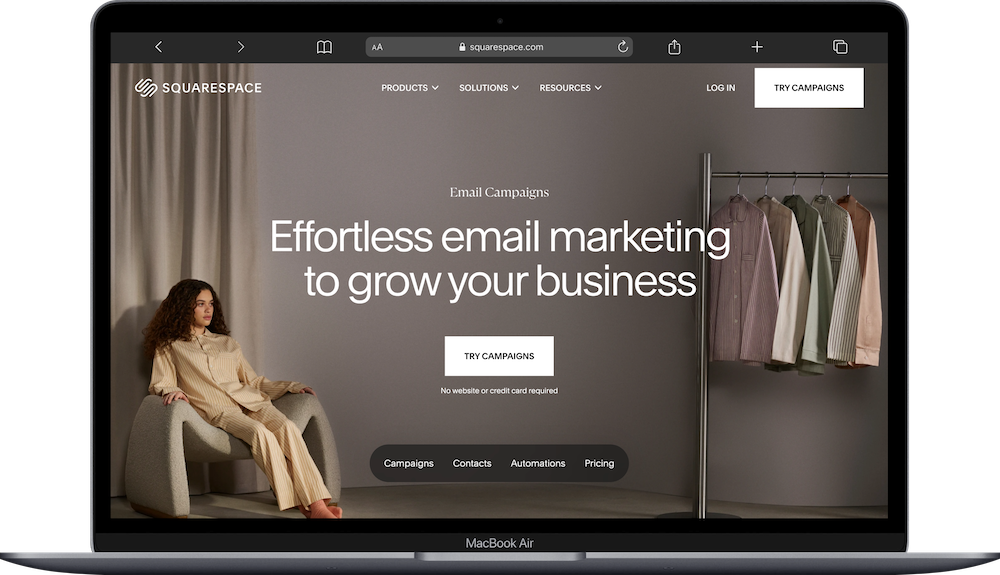
What You Need for Squarespace Email Campaigns Before You Can Send
Before you create anything, there are three things Squarespace requires you to have in place. None of them take long, but you won't be able to send without all three.
1. Sender Details
Your sender details are the name and email address that show up in the From: line of every campaign. You want to use a professional email connected to your domain (like hello@yourdomain.com) rather than a Gmail or Yahoo address. Free email providers trigger spam filters, and your campaigns will show "via squarespace-mail.com" until you switch. Not great.
2. A Mailing List
A mailing list is just a collection of email addresses you're sending campaigns to. You can build one manually, import a CSV of existing contacts, or collect new subscribers through your site. You need at least one before you can send.
3. A Legal Postal Address
CAN-SPAM and PECR regulations require a valid physical address in every marketing email footer. This can be your business address, a PO box, or a mail service address. (If you work from home and don't want your home address out there, a PO box will work perfectly for this.)
How to Set Up Squarespace Email Campaigns - Step by Step
Step 1: Open the Email Campaigns Dashboard
From your Squarespace dashboard, click Campaigns in the left sidebar.
Step 2: Sign Up for a Plan (or Use the Free Trial)
All sites start with a free trial for up to three blast campaigns, with a limit of 5,000 sends per campaign during the trial. You can build mailing lists and drafts without a paid plan, so you can get everything set up before you commit.
See current pricing: Squarespace Email Campaigns plans
Step 3: Set Up Your Sender Details
In Email Campaigns, find the Sender Details settings.
Enter the name and email address you want subscribers to see.
Verify your email address by clicking the link sent to that address.
Verify your domain if you're using a custom email. This removes the "via squarespace-mail.com" label and improves deliverability.
Pro Tip: Do the domain verification step. I know it feels like an extra hoop, but it makes a difference in whether your emails land in inboxes… or get buried in spam folders.
Step 4: Create a Mailing List
In the Email Campaigns dashboard, go to the contacts or mailing lists section.
Create a new mailing list and give it a name.
Add subscribers manually, import a CSV, or leave it for now and collect subscribers through a lead magnet or subcription widget on your site.
Step 5: Add a Way for Visitors to Subscribe
Once you have a mailing list, connect it to your site so visitors can join. The most common option is a newsletter block in your footer; you can also add marketing opt-ins to contact forms. (I've set this up on so many client sites and the footer newsletter block is what I recommend starting with.)
Step 6: Create and Send Your First Email Campaign
In Email Campaigns, click Create.
Browse templates and click one to preview, then click Use This Template.
Edit the content: add your logo, header, body text, and any links or buttons.
Add your subject line, preview text, and connect your mailing list.
Send a test email to yourself first.
Send immediately or schedule for a future time.
Pro Tip: Click ALL the links in your test email, check your images, and open it on both desktop and mobile before you hit send. You cannot recall a campaign once it's out. Like, at all. So give it a good once-over.
Squarespace Blast Campaigns vs. Automated Campaigns
Two types of campaigns here:
Blast campaigns are one-off emails you send manually to a mailing list: newsletters, announcements, promotions. You write it, pick your list, hit send. This is good for one-off emails, or your regular weekly emails.
Automated campaigns send automatically based on a trigger: a welcome email when someone subscribes, or a follow-up after a purchase. Set them up once and they run on their own.
If you're brand new to email, start with blast campaigns to get familiar with the builder before diving into automations.
Tips for Avoiding the Spam Folder
Use a custom email address and verify its domain.
Ask subscribers to add your email to their contacts when they sign up.
Include a valid physical address in the footer (required; Squarespace adds the unsubscribe link automatically).
Avoid all-caps subject lines or excessive punctuation.
Send a test to yourself and check your spam folder before sending to your list.
That last one is easy to skip but SO worth doing. I've caught formatting issues, broken links, and weird spacing just from sending myself a test first.







Frequently Asked Questions
Are Email Campaigns free on Squarespace?
There's a free trial that comes with every paid Squarespace website subscription, but it’s not ‘free’. You get up to three blast campaigns, with a limit of 5,000 sends per campaign during the trial. Worth knowing: you can't send test emails or remove the "Powered by Squarespace" branding during the trial. After that, paid plans start at $8/month billed annually for 500 sends/month, with unlimited contacts on all plans. You can build your list and create drafts without a paid plan, so you can get everything ready before you start paying.
How Do I Add Subscribers to Squarespace Email Campaigns?
A few ways: You can add subscribers manually, upload a CSV of existing contacts, or collect new ones through your site. The most common options are a newsletter block in your footer, a marketing opt-in at checkout if you have a store, or a promotional pop-up. You can have up to 20 mailing lists, and there's no limit on how many subscribers each list can have, though your list size can't exceed your monthly send limit or you won't be able to send to it.
Can I Send Automated Emails with Squarespace?
Yep. Squarespace Email Campaigns includes automations that send automatically based on a trigger. You can set up emails that fire when someone subscribes to your list, submits a form, or makes a purchase. It's not a full multi-step funnel builder, so if you need complex conditional logic or branching sequences, it'll feel limited. But for welcome emails, post-purchase follow-ups, and lead magnet delivery, it works well. Build automations in the Automations section of your Email Campaigns dashboard.
Can I Undo a Sent Squarespace Email Campaign?
Nope. Once sent, a campaign can't be recalled. That's why sending a test email to yourself first is worth the extra two minutes. If your campaign didn't send or there's a delay, contact Squarespace support.
Can I do email marketing without a Squarespace website?
Yep. Email Campaigns is designed to work with a Squarespace site, but you don't need one to sign up. You can use it as a standalone email marketing tool. That said, a lot of the best features, like pulling in your site's branding, blog posts, and products automatically, only work if you have a Squarespace website connected. Get a free Squarespace trial here.
Is There a Limit on How Many Mailing Lists I Can Have?
You can have up to 20 mailing lists on any plan. There's no limit on how many subscribers each list can have, but if a list is larger than your monthly send limit, you won't be able to send to it until you upgrade your plan.
Can I Remove the Squarespace Branding From My Emails?
Not on the entry-level 500 sends plan. Every email sent on that plan includes "Powered by Squarespace" in the footer and you can't remove it. On any higher plan you can turn it off. If having a fully branded email experience matters to you, it's worth factoring that into your plan decision.
Can My Team Members Access Squarespace Email Campaigns?
It depends on their permissions. Site owners and contributors with Administrator or Email Campaigns editor permissions can access all Email Campaigns features including sending campaigns. Other contributor permission levels don't have access.

