Keo Squarespace Template Review
This post contains affiliate links. If you purchase through them, I may receive a small commission at no extra cost to you.
Table of Contents Show
Keo is a free Squarespace template for photographers.
It shows up in every "best Squarespace templates for photographers" roundup, and for good reason – it's clean, minimal & puts your images center stage.
But is it the right starting point for YOUR portfolio site?
Let's break down what Keo actually gives you, who it works well for & when you might want to look elsewhere.
Quick Answer: Is Keo Right for You?
Best for:
Photographers (wedding, portrait, editorial, commercial)
Fine artists & illustrators
Graphic designers & brand designers
Visual creatives who need a minimal portfolio
Not ideal for:
Businesses needing detailed service pages & pricing layouts
Bold, colorful, high-energy brands
Ecommerce-focused sites
Content-heavy businesses or active bloggers
Price: Free with any Squarespace plan
Key features: 4-column portfolio grid, full-screen project pages, lightbox gallery, hover effects, minimal navigation
Bottom line: Keo's a great template for you if you want a minimal, image-focused portfolio. If you need lots of text content or a bold aesthetic, look elsewhere.
What Does Keo Look Like?
Homepage Layout
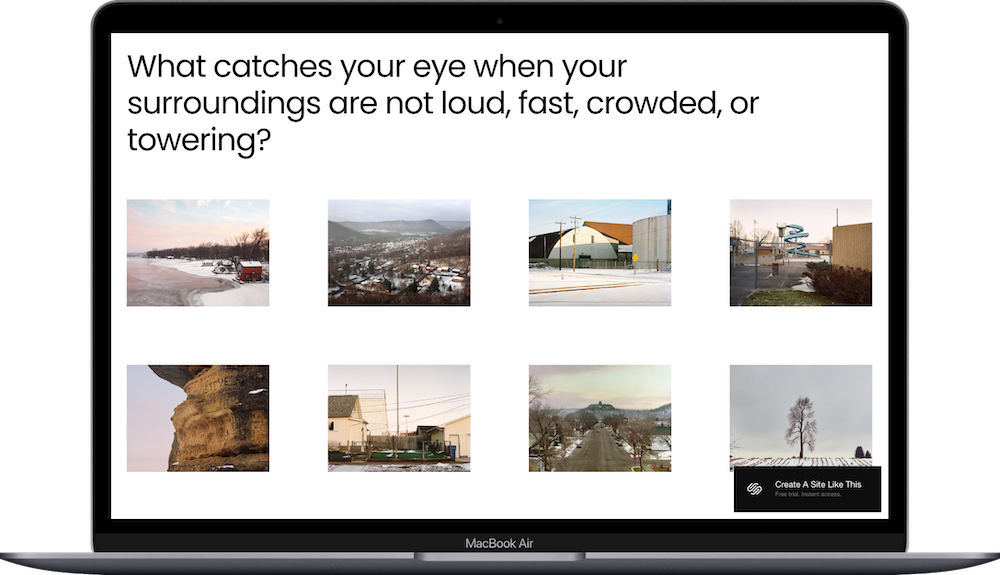
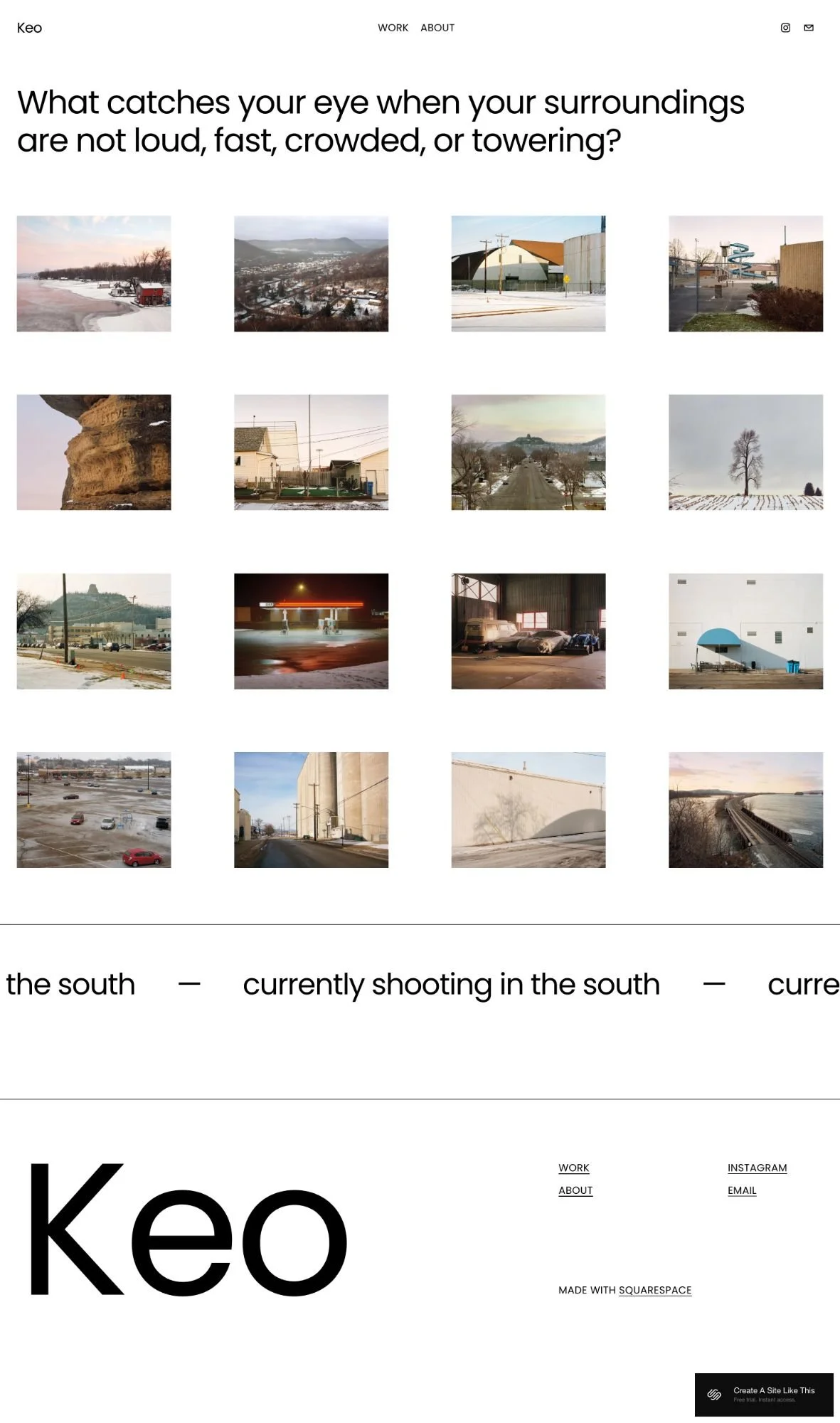
The homepage is a four-column grid of portfolio images. Hover over an image & you see an overlay. Click it & you land on a full-screen project page.
Above the grid, there's large typography – the demo uses a philosophical question, but you can change that to your name, tagline, or just delete it entirely.
Everything else is really just lots of white space.
Navigation
Simple menu at the top: Work, About, Contact in the demo. No other dropdowns or hidden pages. People can see your work, learn about you & contact you.
Project Pages
Full-screen images with space for descriptions. You can add multiple photos per project. The layout stays focused on visuals; there’s literally nothing else here.
Overall Vibe
Minimal, calm, gallery-style. If that matches your brand, great. If you're bold & colorful, Keo might feel too quiet.
Key Features of Keo
Portfolio Grid – 4-column layout on desktop (adjusts for mobile), showcases your work with hover effects
Full-Screen Project Pages – Individual project pages display images large with room for descriptions
Lightbox Gallery – Click images to view in full-screen lightbox
Hover Effects – Category names appear when you hover over portfolio images
Minimal Navigation – Simple menu keeps focus on your work
Mobile Responsive – Grid adjusts to fewer columns on smaller screens, looks good on phones & tablets
White Space – Lots of breathing room around images & text
Gallery Pages – Organize projects into categories
Pros of the Keo Template
Built specifically for portfolios. The grid, full-screen project pages & lightbox all work together to showcase visual work. Your images get the spotlight.
Professional without being stuffy. If you're booking high-end clients or showing work to galleries, Keo has a minimal, polished feel.
Simple navigation. There are not tons of menus, pages, and sections. People find your work, learn about you & contact you.
Gives images room to breathe. The 4-column grid & full-screen layouts don't cram everything together. Your work gets space.
Easy to set up. The structure is straightforward – replace demo images with yours, fill out about & contact pages, organize projects. You're not going to be struggling with complicated layouts.
Cons of the Keo Template
Really minimal starting point. If. you need service pages, pricing sections, or detailed process explanations, you're going to be building those yourself. Keo doesn't give you much beyond portfolio structure.
SEO needs manual work. Like most Squarespace templates, Keo doesn't set up heading tags right (no H1 by default). You'll fix that yourself. The minimal design also means less text on the page, making it harder to rank for keywords if search traffic matters.
Looks like other Squarespace sites unless you customize. This is true for all free Squarespace templates. Unless you heavily customize fonts, colors & layouts, your site will look similar to all other photographers and creatives using this template. If you want something truly unique right out of the gate, consider premium templates from designers like Big Cat Creative or Applet Studio, or work with a Squarespace designer who specializes in portfolio sites.
No ecommerce or blog styled in the demo. You can add them (blog pages take one click), but you're setting everything up yourself instead of tweaking what's already there.
Limited text space in demo. If explaining what you do requires paragraphs, Keo's minimal layout means you're adding content areas yourself.
Who Should Use the Keo Template
Keo is a great template choice if you're:
A photographer (wedding, portrait, editorial, commercial) needing a portfolio to show work & book clients
A fine artist showcasing paintings, illustrations, or visual work
A graphic designer or brand designer presenting projects
Any visual creative whose work speaks for itself without tons of explanation
Someone who likes minimal aesthetics – think gallery vibes, calm & sophisticated
Looking for simple bones: portfolio grid, project pages, about & contact
Start with a different template if:
You need text-heavy content already laid out (detailed service descriptions, pricing breakdowns, long case studies)
Your brand is bold, colorful, or high-energy (Keo starts minimal & calm – why fight the starting point?)
Ecommerce or blogging is central & you want those features already styled
You want something unique right away without heavy customization
Can't You Just Customize Keo?
Yep. Every Squarespace template is fully customizable – add pages, sections, features, whatever.
But the question isn't "can you make it work?" It's "is THIS template the best place to start?"
Keo gives you a minimal, image-focused starting point. If that matches your vision & you like building from a clean slate, great. Start here.
But. If you need service pages, pricing layouts & content sections already in the demo, starting elsewhere means you're customizing what's there instead of building from scratch.
Focus on the bones, not just the aesthetics. Pick a template close to what you're building.
How Much Does Keo Cost?
Keo is free with any Squarespace plan. You'll pay for your Squarespace subscription:
Basic plan: $16/month (annual) or $23/month (monthly) – basic site, can sell products but has transaction fees
Core plan: $23/month (annual) or $36/month (monthly) – no transaction fees on physical products, adds custom code & integrations
Plus plan: $39/month (annual) or $56/month (monthly) – lower payment processing fees, advanced ecommerce
Advanced plan: $99/month (annual) or $142/month (monthly) – lowest processing fees, unlimited everything
Annual plans include a free custom domain for the first year.
Start your free 14-day Squarespace trial here (aff link) & get 10% off your first year.
Keo vs. Other Free Squarespace Photographer Templates
Keo vs. Reseda
Reseda is another photographer template but includes more business features right in the demo – service packages, Acuity scheduling integration for bookings, and sections specifically for highlighting services.
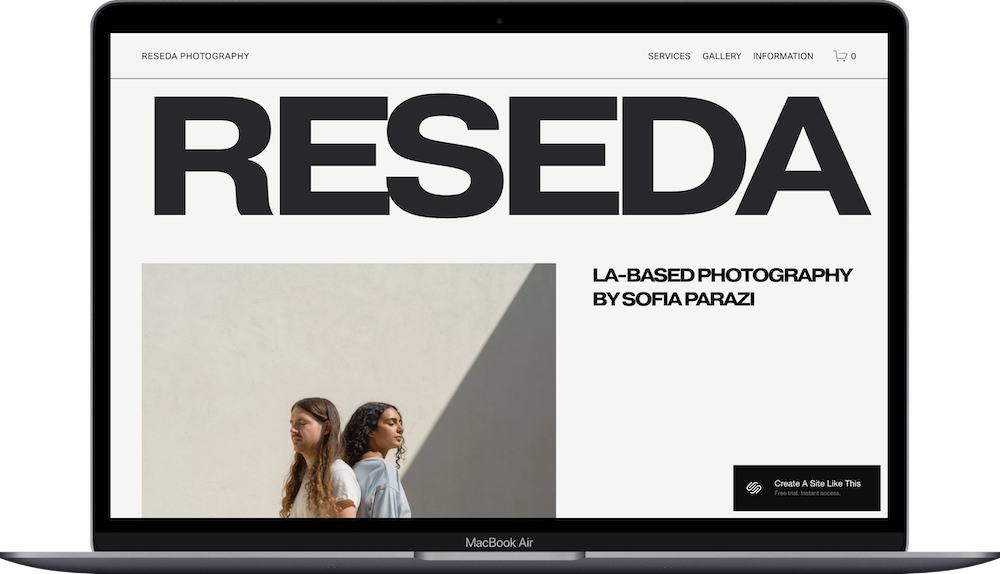
Choose Keo if: You want minimal & clean with just portfolio + contact
Choose Reseda if: You need service packages & online booking already set up
Keo vs. Ortiz
Ortiz has a bolder look with large typography, vibrant colors, and dynamic shapes. More visual variety than Keo's stark minimal approach.
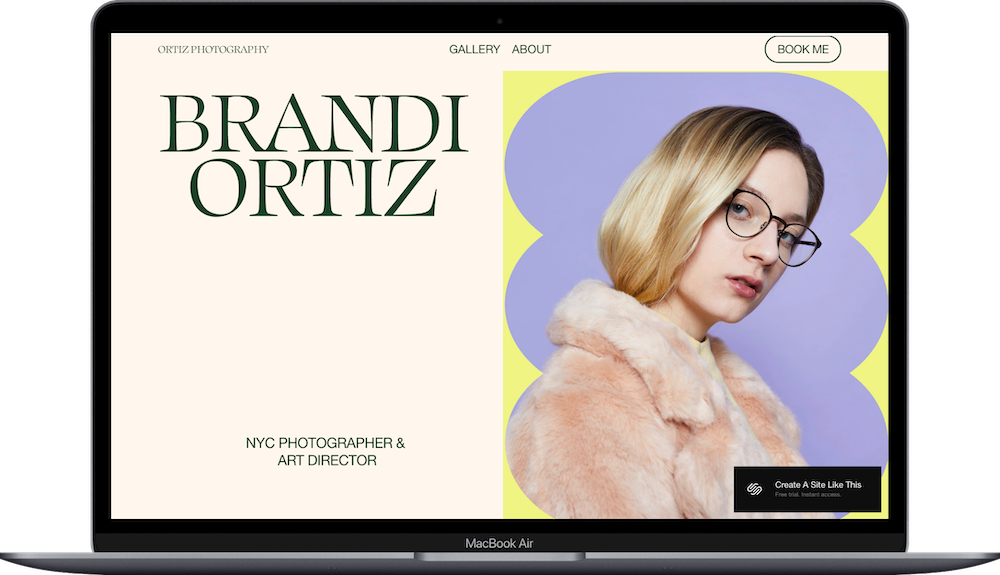
Choose Keo if: You want calm & understated
Choose Ortiz if: You want bolder typography & more color contrast
Keo vs. Tepito
Tepito is also minimal but includes more ‘About’ features; the homepage and template focuses more on the artist than the art.
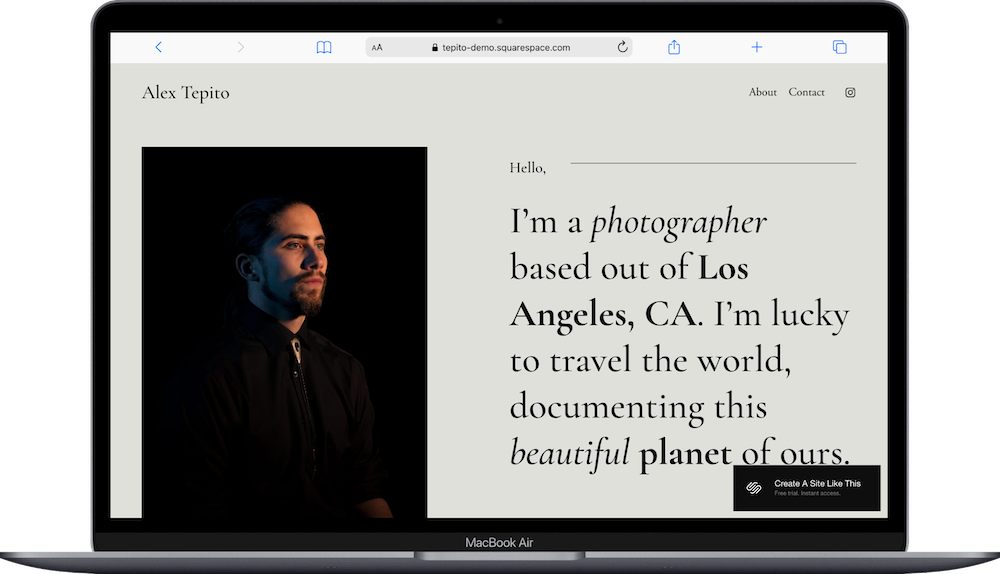
Choose Keo if: You want the most stripped-down starting point
Choose Tepito if: You want to have a stronger biographical element to your photography website
Keo vs. Quinn
Quinn is an editorial style Squarespace template with oversized typography & more of a magazine feel. More magazine-like than Keo's gallery approach.
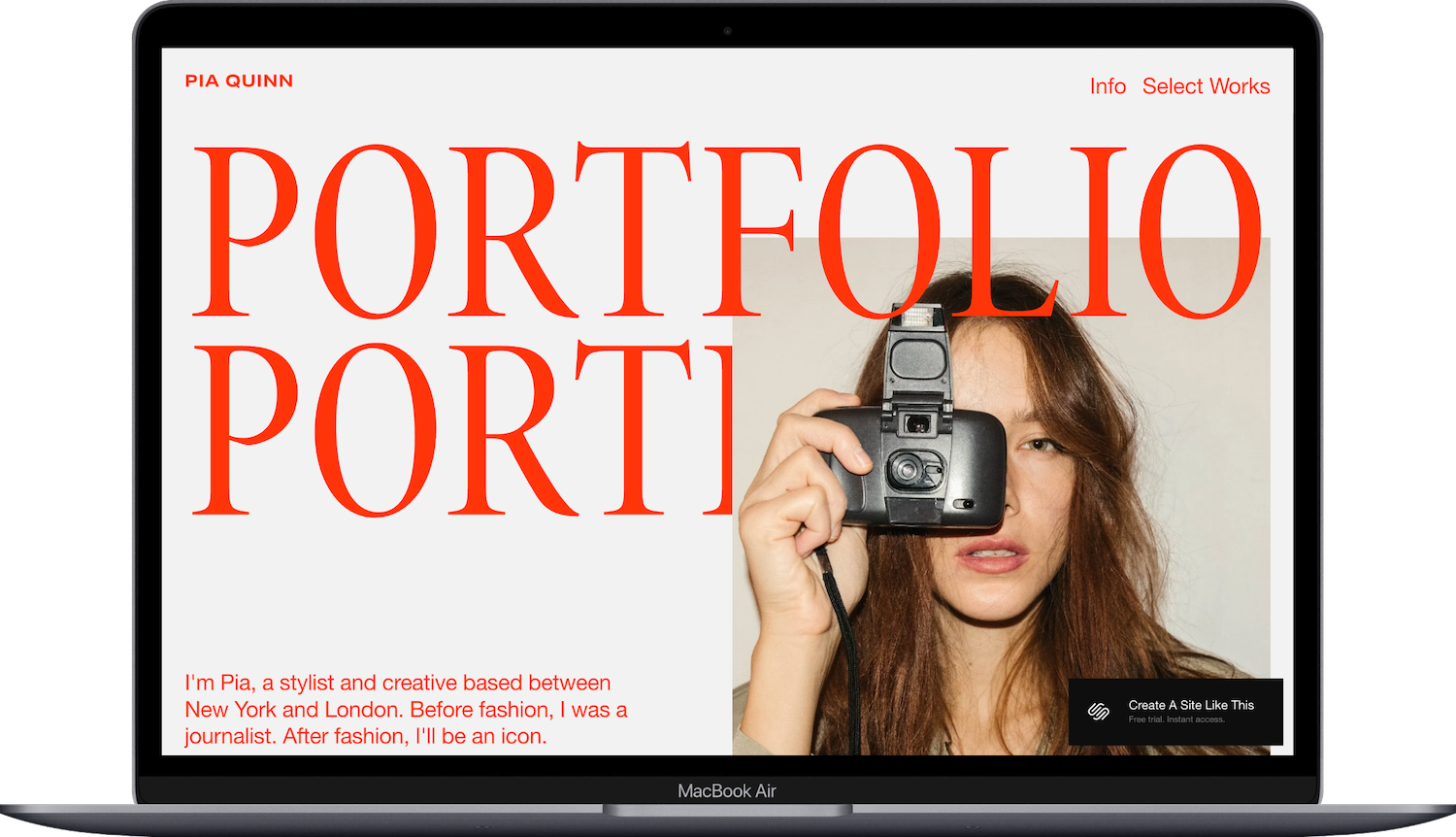
Choose Keo if: You want gallery-style with image grid focus
Choose Quinn if: You want editorial-style with bold typography & magazine vibes
Here’s how you get the Keo template set up to launch:
Replace the homepage text. Change to something that fits your brand, or just use your name and tagline.
Upload your portfolio images. Replace the demo images in the grid with your own work. Keep the quality high, the images optimized, and make sure images are consistent in style.
Organize your work into projects. Create project pages for each body of work (weddings, portraits, branding projects, etc.) and add multiple images to each.
Update your pages. Fill out the Work page with your project categories and thumbnails. Add your photo and bio to the About page. Set up the Contact page and make sure the form works (consider adding your email or phone if you want direct contact).
Check your heading hierarchy. Squarespace templates don't always set up headings correctly by default. Make sure your main headline is an H1 and subheadings follow logical order (H2, H3, H4). This matters for both SEO and accessibility.
Adjust your colors and fonts. Head into Site Styles by clicking the paint brush in the upper right. Keo is minimal by default, but you can adjust fonts and add your brand colors if you want.
Add your favicon & social share image. Upload a small square logo for your favicon (browser tab icon) and set your default social sharing image.
Test the lightbox gallery. Click through your portfolio and make sure images open in the lightbox properly.
Double check everything and go live. Check how everything looks on mobile, review your grammar and spacing, make sure all your links work, connect your domain, choose your Squarespace plan, then hit PUBLISH. 🎉
Keo Squarespace Template FAQs
How much does the Keo template cost?
Keo is free with any Squarespace subscription. There's no extra charge for using this template – it's included with all Squarespace plans.
Can I sell prints or products on the Keo website template?
You can, but you'll need to add e-commerce features. Keo isn't built with a shop, so you'd need to either upgrade to a Core or Plus plan and add product pages, or link to an external shop like Etsy or Print-on-Demand services.
Is the Keo squarespace template good for SEO?
Kind of. Like all Squarespace templates, Keo doesn't set up heading tags correctly by default (no H1 tags), so you'll need to fix that manually. The minimal design also means less text content, which can make it harder to rank for keywords. But you can still easily optimize your page titles, meta descriptions, and image alt text.
Can I use the Keo template on mobile?
Absolutely. Like all native Squarespace templates, Keo is fully responsive and looks good on phones and tablets. The grid adjusts to fewer columns on mobile so your work still looks great.
Can I change fonts and colors on the Keo template?
Yes. Keo is built on Squarespace 7.1, so you can customize fonts, colors, buttons and more through Site Styles, all without code. The template is minimal by default, but you can add your own brand colors.
Can I add a blog to Keo?
Yep, adding a blog page takes one click. But if blogging's central to your business & you want blog layouts already styled in the demo, you might prefer a template with blog features built in so you're customizing instead of setting everything up yourself.
Does Keo work for designers who aren't photographers?
Absolutely. Popular with photographers but Keo works for any visual creative: graphic designers, illustrators, brand designers, really anyone needing a clean portfolio website.
Can I add more pages to show services or pricing?
You can add as many pages as you want. But since the demo's minimal, you won't have built-in sections for detailed service descriptions or pricing tables – you'd build those layouts yourself. If you need extensive service pages, starting with a template that has those areas already there (like Reseda) might save time.
How many projects can I showcase on the homepage?
The four-column grid can show as many projects as you want; just keep scrolling. But for the best user experience, keep it to your strongest work (maybe 12-20 projects max on the homepage).