How to Set Up Acuity Scheduling on Your Squarespace Website: A Complete Guide (2026)
A note on pricing & details: all prices mentioned in this post are accurate as of the date this article was written, but can change at any time. This includes Squarespace plans, third-party tools, plugins, templates, and any other services referenced. Always check directly with the provider for the most current pricing & updates before committing.
This post contains affiliate links. If you purchase through them, I may receive a small commission at no extra cost to you.
Table of Contents Show
How do you set up scheduling on your Squarespace website?
Quick Answer:Acuity Scheduling (which Squarespace owns) is the booking tool most Squarespace users use for appointments, classes, and packages. It's a separate paid add-on that works with any Squarespace plan - it's not included in your website subscription. Plans start at $16/month. To get started, purchase an Acuity plan, then embed your booking page directly on your Squarespace site using a scheduling block, or share your direct booking link. Setup takes about an hour once you have your services, availability, and payment info ready.
KEY FACTS:
Acuity Scheduling is owned by Squarespace but sold as a separate add-on - it is NOT included in any Squarespace website plan
Acuity plans: Starter ($16/mo), Standard ($27/mo), Premium ($49/mo) - all billed annually
Works with any Squarespace plan (Basic, Core, Plus, Advanced)
Formerly known as Squarespace Scheduling; Squarespace acquired Acuity in 2019 and for several years offered a rebranded version called Squarespace Scheduling, but has since united the scheduling experience back under the Acuity Scheduling name for everyone
Supports one-on-one appointments, group classes, and packages/subscriptions
Syncs with Google Calendar, iCloud, Outlook, and Office 365
Accepts payments through Stripe, Square, and PayPal
Clients can book, reschedule, and cancel on their own based on your rules
Automated email and SMS reminders are built in on some plans
You can embed the scheduler on any Squarespace page using the Scheduling block
7-day free trial available on Acuity before committing to a paid plan
What Is Acuity Scheduling?
Acuity Scheduling is a standalone appointment booking tool that Squarespace owns.
Acuity handles:
One-on-one appointments (consultations, coaching calls, photography sessions, haircuts, etc.)
Group classes (yoga, workshops, webinars)
Packages and subscriptions (bundles of sessions or recurring bookings)
It also sends automated confirmation emails, reminder emails, and SMS reminders, which helps your no-show rate drops significantly. Clients can reschedule or cancel on their own based on whatever rules you set, which means fewer "hey, can we move this?" emails cluttering up your inbox.
One thing to know upfront: Acuity is not included in your Squarespace website plan. It's a separate subscription you purchase on top of your website plan. I've had a lot of clients assume it's bundled in because Squarespace owns both products and it USED to be included in some plans, but they ARE billed separately.
Before You Start: Which Acuity Plan Do You Need?
Acuity has three tiers, all billed annually:
Starter- $16/month Best for solo practitioners. Includes 1 calendar, basic appointment scheduling, automated reminders, and intake forms. If you're a solo service provider with straightforward booking needs, this is probably where you start.
Standard - $27/month Up to 6 calendars, which means you can assign individual calendars to different team members or locations. Also adds packages, gift certificates, group appointments, and more advanced reporting. Good for small teams or multi-service businesses.
Premium- $49/month Up to 36 calendars, advanced reporting, multiple locations, and priority support. Built for larger teams and multi-location businesses.
There's a 7-day free trial so you can test things out before committing.
Step-by-Step: Setting Up Acuity Scheduling
Step 1: Purchase Acuity and Access Your Dashboard
Go to acuityscheduling.com and sign up for a plan, or access it through your Squarespace account under Scheduling in the left-hand panel. If you're starting fresh, you'll be taken through a guided setup flow. If you've already poked around, you'll land on the main Acuity dashboard where you manage everything.
Step 2: Set Up Your Appointment Types
This is where you define what people can book with you. Click Appointment Types and then New Type of Appointment.
You'll choose between three options:
One-on-One: A single client books a session with you. Think consultations, coaching calls, design sessions, haircuts, photography shoots.
Group Class: Multiple people can sign up for the same time slot. Think yoga classes, workshops, group coaching sessions.
Package/Subscription: Clients purchase a bundle of sessions upfront or subscribe for recurring appointments.
For each appointment type, you'll fill in:
Name (what the client sees, like "60-Minute Strategy Session" or "Intro Consultation")
Duration (15 minutes, 30 minutes, 60 minutes, custom)
Price (free, paid, or "show price but collect payment later")
Description (a few sentences about what the session includes; this shows on your booking page)
Category (optional, but helpful if you offer multiple types of services)
Pro Tip: Be specific with your naming. "Free Call" tells the client almost nothing. "30-Minute Branding Strategy Call" tells them exactly what they're getting and how long it takes.
Step 3: Set Your Availability
Under Availability, you'll define when clients can book with you. This is where you set:
Your regular weekly hours
Time zone (especially if you work with clients in different regions)
Buffer times (padding between appointments so you're not back-to-back all day; 15 minutes minimum is a good rule of thumb)
Minimum scheduling notice (how far in advance someone has to book; prevents last-minute bookings you're not prepared for)
Maximum advance booking (how far into the future they can schedule; 30, 60, or 90 days out are common)
You can set different availability for different appointment types. So maybe your coaching calls are only available on Tuesdays and Thursdays, but your quick 15-minute check-ins are available every weekday.
Step 4: Customize Your Intake Forms
Under each appointment type, you can add Intake Forms with custom questions that clients fill out when they book.
You can add:
Text fields (short answer or paragraph)
Dropdown menus
Checkboxes
File upload fields
If you're a photographer, you could ask for the event date and location before the call even happens. If you're a coach, you could ask "what's the biggest challenge you're facing right now?" so you come to the session prepared. If you're a consultant, you could have them upload a document or link to their current website.
This saves a LOT of time because you're not spending the first 10 minutes of every session asking background questions you could've collected upfront.
Step 5: Connect Your Calendar
Go to Availability → Calendar Sync and connect your external calendar. Acuity syncs with:
Google Calendar
iCloud Calendar
Outlook
Office 365
This is a two-way sync: events on your personal calendar block off those times on your booking page, and new bookings from Acuity automatically appear on your calendar. Set this up before you share your booking link with anyone. Otherwise you risk double-bookings. (And that is not a fun email to send.)
Step 6: Set Up Payments
If you're charging for sessions, head to Payments to connect a payment processor. Acuity integrates with:
Stripe (credit/debit cards)
Square (credit/debit cards)
PayPal
You can choose to:
Require full payment at the time of booking
Require a deposit upfront with the balance due later
Collect payment after the session
For each appointment type, you can set the price and payment terms individually. So your free discovery call has no payment required, but your paid sessions collect a deposit at booking.
You can also set up packages and gift certificates so clients can buy bundles of sessions or give sessions as gifts.
Step 7: Configure Email & SMS Notifications
Under Notifications, you can customize:
Confirmation emails (sent immediately when someone books)
Reminder emails (sent a set number of hours or days before the appointment)
Follow-up emails (sent after the appointment; great for sending a thank-you or feedback request)
SMS reminders (text message reminders; available only on Standard and Premium plans)
You can edit the copy in each email, add your branding, and include things like a Zoom link, pre-session instructions, or your cancellation policy. Automated reminders alone can dramatically cut your no-show rate.
Step 8: Add Video Conferencing (If Applicable)
If your sessions happen virtually, Acuity can automatically generate and include meeting links in your confirmation emails. It integrates with:
Zoom
Google Meet
GoTo Meeting
Under Integrations → Video Conferencing, connect your preferred platform. Once connected, a unique meeting link is created for each booking and included in the confirmation email automatically. One less thing to do manually every time someone books.
Step 9: Embed the Scheduler on Your Squarespace Website
You have two main options:
Option A: Embed on a Squarespace page
Go to the page where you want the scheduler to appear (like your Services or Book Now page)
Add a new block
Select the Scheduling block
Choose which appointment types to display
Save and publish
The embedded scheduler matches your website's styling so it looks like a natural on-brand part of your site.
Option B: Share a direct booking link
In your Acuity dashboard, you'll find a direct link to your booking page. You can share this anywhere: in your email signature, on social media, in a link-in-bio page, in client emails.
I'd recommend doing both: embed on your site AND use the direct link for sharing elsewhere. That way people can find your booking page no matter where they come across you.
Templates That Work Well for Service-Based Businesses
If you're setting up scheduling, you're probably running a service-based business. Here are a few Squarespace templates that could be a great starting point:
Clove Squarespace Template is set up for therapists, coaches, and consultants, with pages for Services, Team, Blog, and a "Get Started" button in the navigation. If you're offering multiple service types and want a polished multi-page site, Clove is a fabulous template to start with.
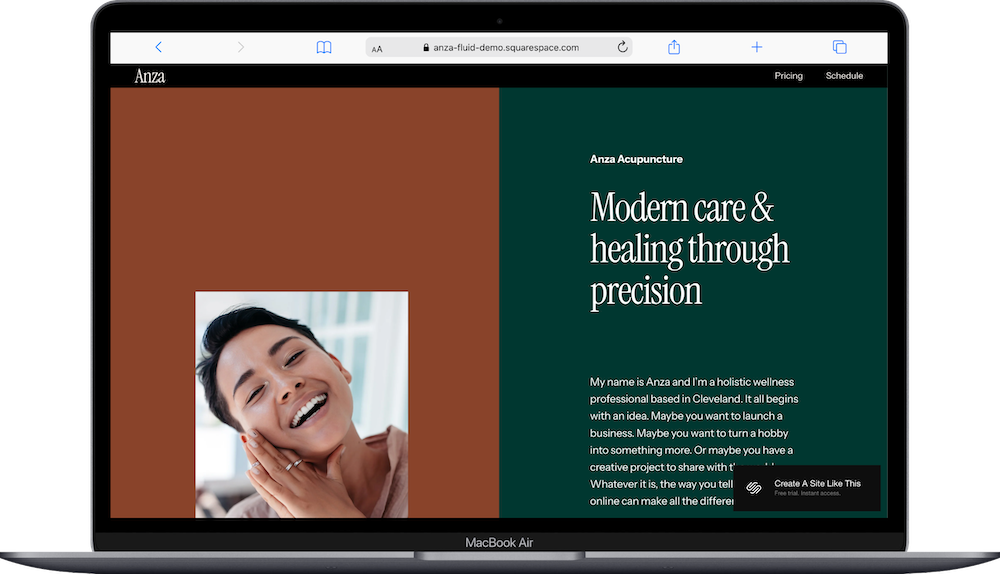
Anza Squarespace Template is built for wellness and health practitioners, with a Pricing page and a Schedule page already included. If your scheduling setup is the core of your business, Anza is worth a look.
Cole Squarespace Template is set up for personal trainers with a "Book Free Session" button built into the homepage flow. If you want a direct path from homepage to booking, Cole handles that well.
Almar Squarespace Template works for coaches and consultants with a clean "Get Started" call-to-action and room for blog content alongside your services.


Tips for Getting the Most Out of Acuity
Set buffer times.
Back-to-back calls all day is a fast track to burnout. Even 15 minutes between sessions gives you time to take notes, grab water, and reset.
Be Strategic with how you create intake forms
Don't add fields just because you can; ask for information that makes the session more productive. Every unnecessary field is friction between the client and the "Book Now" button.
Create a cancellation policy and put it everywhere.
In your confirmation email, on your booking page, and on your website. Acuity lets you set cancellation and rescheduling windows, and requiring a deposit at booking helps protect against last-minute cancellations.
Check your booking flow from the client's perspective.
After you finish setting everything up, open a private browser window and go through the entire booking process as if you were a client. Book a test appointment. See what the confirmation email looks like. I've done this on probably 30+ client sites and there's ALWAYS something small that needs tweaking; a weird time zone default, a missing Zoom link, a confirmation email that still has placeholder text. You won't catch it unless you go through the flow yourself.
Set up your SEO while you're at it.
If you're already in your Squarespace dashboard building out your booking pages, take a few extra minutes to add page titles, meta descriptions, and alt text to any images. You're already in there; might as well knock it out.
Frequently Asked Questions
How much does Acuity Scheduling cost?
Acuity Scheduling is a separate paid add-on from your Squarespace website plan - it's not included in any Squarespace subscription. Plans start at $16/month (Starter, billed annually) for solo practitioners with 1 calendar. The Standard plan is $27/month (up to 6 calendars, packages, gift certificates), and Premium is $49/month (up to 36 calendars, multiple locations, advanced reporting). There's a 7-day free trial.
Is Acuity Scheduling included in my Squarespace plan?
Nope. Acuity is owned by Squarespace but sold separately. You need to purchase an Acuity subscription on top of your Squarespace website plan. It works with any Squarespace plan (Basic, Core, Plus, or Advanced), but it's always an additional cost.
Is Squarespace Scheduling the same as Acuity Scheduling?
Yes, Squarespace Scheduling and Acuity Scheduling is the same product. Squarespace acquired Acuity Scheduling and for several years offered a rebranded version called Squarespace Scheduling for new customers using Squarespace accounts. Now, Squarespace has united the scheduling experience back under the Acuity name for everyone. If you've been using Squarespace Scheduling, everything works exactly the same, even if the name is different.
Can I accept payments through Acuity Scheduling?
Yep - Acuity integrates with Stripe, Square, and PayPal. You can require full payment at booking, collect a deposit upfront, or take payment after the session. You can also sell packages and gift certificates.
Can I sync Acuity with my Google Calendar?
Acuity offers two-way sync with Google Calendar, iCloud, Outlook, and Office 365. Your personal calendar events block off booking availability, and new client bookings appear on your calendar automatically. Set this up before sharing your booking link so you don't end up with double-bookings.
Can I use Acuity without a Squarespace website?
You can! Acuity works as a standalone booking tool regardless of what platform your website is on. You can share your direct booking link or embed the scheduler on any website using an embed code. The integration is smoothest when your site and scheduling are both in the Squarespace ecosystem, but it's not required.
Does Acuity work for group classes and workshops?
It does. When creating an appointment type, you can choose "Group Class" and set a maximum number of participants per time slot. This works well for yoga studios, group coaching, workshops, and any format where multiple people attend the same session.
What's the difference between Acuity's plans?
The main differences are the number of calendars (which determines how many team members or locations you can manage), and access to features like packages, gift certificates, SMS reminders, and advanced reporting. Starter ($16/mo) is for solo practitioners. Standard ($27/mo) adds team and package features. Premium ($49/mo) is for larger operations with multiple locations.

