A note on pricing: all prices mentioned in this post are accurate as of the date this article was written, but can change at any time. This includes Squarespace plans, third-party tools, plugins, templates, and any other services referenced. Always check directly with the provider for the most current pricing before committing.
This post contains affiliate links. If you purchase through them, I may receive a small commission at no extra cost to you.
Table of Contents Show
How do I add a blog to my Squarespace website?
Quick Answer: Adding a blog to your Squarespace site takes about two minutes. Open your Pages panel, click the + icon, find Blog under Showcase, pick a layout, and name your page. That’s it; you now have a blog page and a post manager at the same time. From there, click into your blog page in the panel and hit + to write your first post. Your blog starts in the Not Linked section of your Pages panel, which means it won’t show up in your navigation yet. When you’re ready for it to go live, drag it up into your Main Navigation section.
KEY FACTS
Adding a blog works on every Squarespace template; you don’t need a “blog template” to get started
A blog page is your landing page (the list or grid of posts); blog posts are individual pages with their own URLs
You can have multiple blog pages on one Squarespace site
Blog posts use Squarespace’s classic editor, not Fluid Engine
Post status options: Draft, Scheduled, Needs Review, Published
You can schedule posts to go live automatically at a future date and time
Blog posts on version 7.1 can be gated behind a paywall using Member Sites
Adding a blog to your Squarespace site is one of the quicker things to set up. The page itself takes a couple of minutes; the part that tends to take more time is the writing. Here’s how to get everything set up, what the settings do, and a few things worth knowing before you start publishing.
(If you’re on the fence about whether a blog makes sense for your site at all, my post on whether you need a blog for your website is worth reading before you dive in.)
First: ANY Squarespace template works for blogging
You don’t need to pick a “blog template” or start your site over to add a blog (though you can if you want to! Find what Squarespace says are the best Squarespace templates for blogging here.) Every Squarespace template supports the same features, including a full blog. If you’re already on a template you like, just add a blog page directly without touching anything else on your site. And if you’re just getting started and want a template that works especially well for blogging, here are some of the best options.
What’s the difference between a blog page and a blog post in Squarespace?
When you add a blog in Squarespace, you’re adding two things at once. The blog page is what your visitors see: a scrollable landing page that displays your posts in a list or grid. And blog posts are the individual pieces of content; each one has its own page and its own URL.
You can also have multiple blog pages on one site, and they’re completely independent. A food photographer might keep recipes on one blog page and travel writing on another. A business coach might have a client-facing tips blog and a separate behind-the-scenes journal. Whatever makes sense for your content.
How to add a blog page in Squarespace (7.1)
Open your Pages panel and click the + icon. Under Showcase, click Blog. Choose a layout (you can change it later), give your blog page a name, and press Enter.
Your new blog page will land in the Not Linked section of your Pages panel. That’s intentional; it just means it won’t appear in your navigation yet. When you have a post or two ready and you’re comfortable going live, drag it up into your Main Navigation section and it’ll show up in your header.
How to write & publish a Squarespace blog post
Click your blog page in the Pages panel to open the blog manager, then click the + icon to create a new post. New posts are saved as Draft by default, so nothing goes live until you’re ready. When you’re done, you can publish immediately or schedule the post to go live at a specific date and time.
One thing to know: blog posts use Squarespace’s classic editor, not Fluid Engine, so you won’t have the same freeform drag-and-drop as on regular pages.
For the full step-by-step on writing, formatting, and configuring a post, my guide to creating a Squarespace blog post covers everything.
Squarespace Blog post settings
Each post has a settings panel. Here is what you should specifically know about:
Categories and tags
Categories are your main topics; tags are the sub-topics within them. If you run a wellness blog, your categories might be nutrition, fitness, and mindset, and your tags within nutrition might be meal prep, supplements, and recipes. Setting these up from the start makes your blog easier to navigate, and it also lets you use Squarespace summary blocks to display posts by category elsewhere on your site. Here’s a full guide to organizing your blog with categories and tags if you want to get into the details.
Featured image and excerpt
The featured image is the thumbnail readers see when they scroll through your blog page. The excerpt is the short preview text that appears under the title. Both also show up in Google results and social media previews; worth filling in for every post you publish.
Post URL
Squarespace auto-generates a URL from your post title, but the default is almost always too long. Or if you duplicated a post, it’ll be a bunch of nonsense letters. Change it to your core keywords only. A post called “10 Spring Cleaning Tips for Your Home Office” should become something like /spring-cleaning-home-office; short, specific, and easier for search engines to read.
SEO title and description
Separate from your post title, the SEO title is what shows up as the clickable headline in Google results. The SEO description is the preview text under it. These don’t change anything about how your post looks on your site; they’re purely for search. Worth filling in for every post you want people to find; otherwise Google will just pull what it things is relevant.
Scheduling a blog post
You can schedule any post to publish automatically at a future date and time. Set the status to Scheduled, pick your date and time, and save. The post will go live on its own as long as your site is published. Helpful if you want to write ahead and publish on a consistent schedule without having to be online when posts go live.
Time-saving trick: build a blog post template
Once you’ve got your first post looking exactly how you want it (layout set and settings configured), go to the blog panel, click the three dots next to that post, and hit Duplicate. Delete the written content, leave a few placeholder lines, and save it as a draft labeled “Template.” Every time you sit down to write a new post, duplicate the template instead of starting from scratch. You keep all your formatting and settings without having to redo them. If you write in different formats (long-form vs. list posts, for example) you could make a few versions and label them accordingly. Once you’re publishing consistently, it saves a surprising amount of time per post.
Can I sell access to your blog posts on Squarespace?
Yes, on version 7.1. You can add a paywall to your blog page using Squarespace Member Sites. Once it’s set up, readers need to sign up or pay to access your posts. You can offer free access in exchange for an email address, a paid subscription, or both as separate tiers. Here’s how to set up Member Sites if you want the full walkthrough.
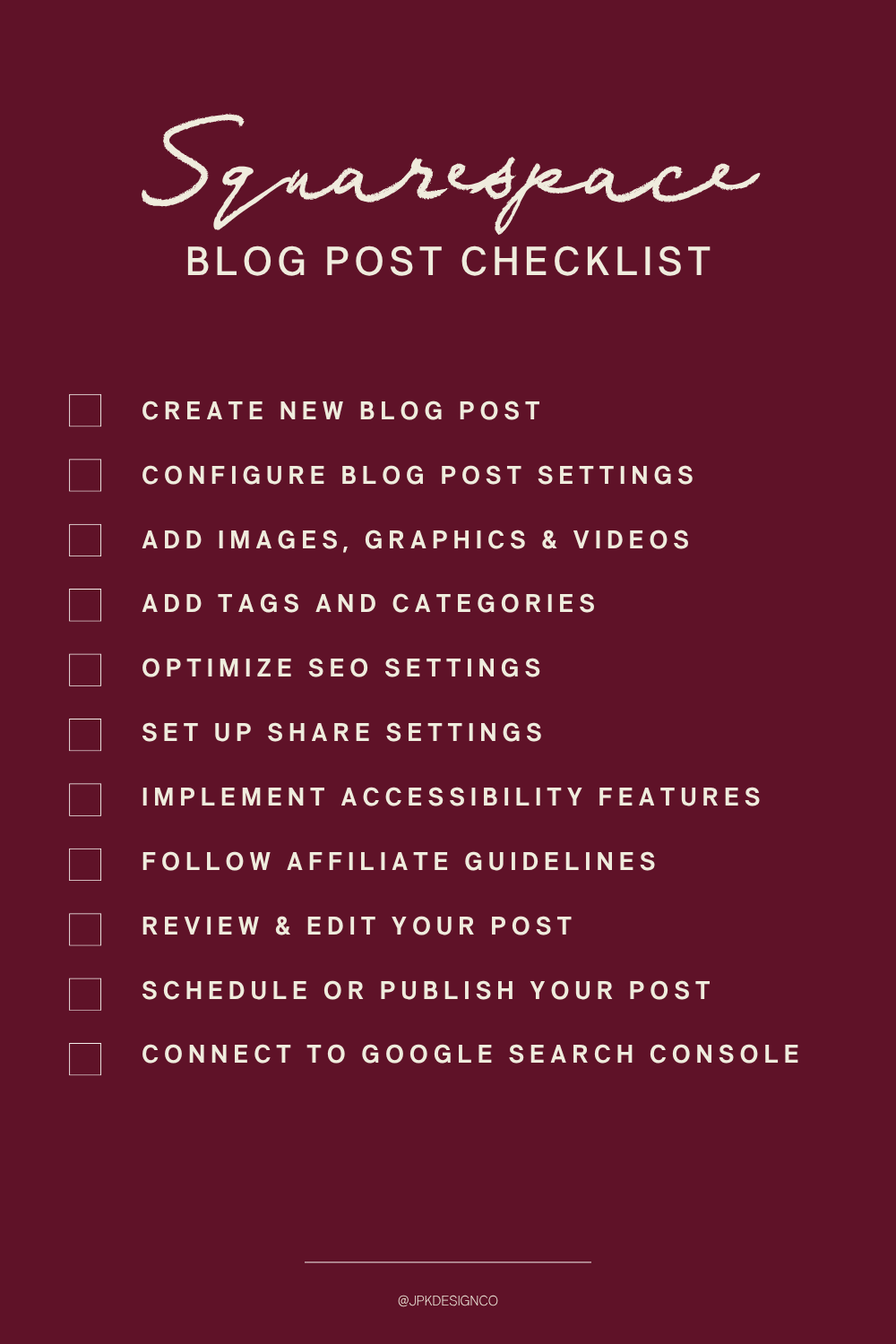
I put together a Squarespace Blog Post Checklist that’s worth running through before your first post goes live.
Don’t have a Squarespace site yet? You can start a free 14-day trial and set up your blog before committing to a plan.
Frequently Asked Questions
Can I add a blog to any Squarespace template?
Yes. Every Squarespace 7.1 template supports the same features, including a full blog. Templates are really just design starting points; they don't limit what you can add. If you already have a site you're happy with, you can add a blog page directly from your Pages panel without switching templates or starting over.
Can I have more than one blog on my Squarespace site?
Yes. You can add multiple blog pages to a single Squarespace site, and they're completely independent of each other. Each one has its own posts, settings, URL, and categories. Some people use this to separate different content types (like a "News" blog and a "Tutorials" blog), and each blog can have its own layout and design settings.
Can I schedule blog posts in Squarespace?
Absolutely When editing a post, set the status to "Scheduled" and choose a date and time. The post will publish automatically at that time as long as your Squarespace site is live (meaning you're on a paid plan, not still in trial). This is handy if you like to batch-write posts and space them out over the week.
Can I use Fluid Engine to design my blog posts?
Not yet. Blog posts in Squarespace still use the classic block editor, not Fluid Engine. You can add and arrange content blocks (text, images, video, etc.), but you don't get the same freeform drag-and-drop grid layout that's available on regular pages. Squarespace has been rolling Fluid Engine out gradually since 2022, but blog posts, event descriptions, and product pages still use the classic editor as of 2026.
Can I put my blog behind a paywall?
Yes, on Squarespace 7.1. You can connect a blog page to a Squarespace Member Sites pricing plan, which means visitors would need to sign up (free or paid) to access your posts. This works for things like premium content libraries, paid newsletters, or members-only resources. You'll need a Member Sites add-on subscription on top of your website plan; it starts at $9/mo for the Starter tier. See how Member Sites works for the full setup.
How do I add an author to my Squarespace blog?
If you have multiple contributors or guest writers, go to Settings → Permissions & Ownership → Add Basic Author. From there, you can add a display name, profile image, and short bio. Once the basic author is created, you can select them from the Author dropdown when editing any blog post. Basic authors don't need their own Squarespace login; they're just names you can attribute posts to. If you need someone to actually log in and write posts themselves, you'd invite them as a contributor instead (same Permissions panel, different option).

